
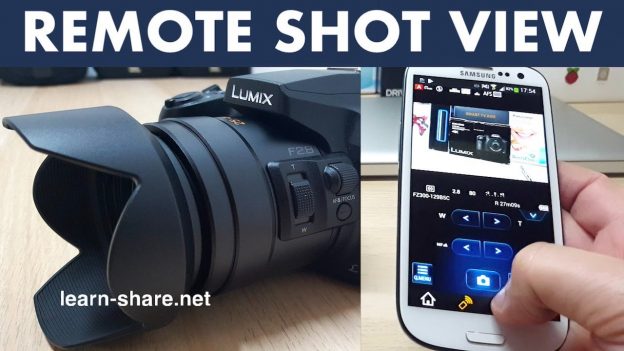
Panasonic Lumix Cameras Remote Shooting View. How to remotely control your Lumix camera by setting up Wi-Fi connection to the Panasonic Image App. https://learn-share.net Subscribe https://goo.gl/Amj8rx Download/Install the Panasonic Image Application for your smartphone (Android, iOS).
FZ300 best 4K camera under $500 http://amzn.to/2CQfnTV
1- Press the Wi-Fi Button on the camera, or press the menu settings button.
2- Go to the setup page.
3- Enter on wifi, and next on wifi function.
4- Set a new connection.
5- Remote shooting view.
6- Now from the smartphone select wi-fi and connect to the wifi network of your camera.
When connected, the Panasonic Image Application will finish connecting to the camera, and will open the Image Application main page when the connection is complete.
Thanks for watching and remember to rate and Subscribe https://q.gs/8436075/subscribe-learn-share Newsletter if you haven’t already.
? Watch next: FZ300 unbox https://www.youtube.com/watch?v=zFXnQE8CIts&list=PLQJGHOK40fH9im1a4q9EA_Uo3CW9fDMB9&index=3
?Great deals: http://learn-share.net/shop-store/
Follow learn Share on:
➥ Twitter: http://twitter.com/_learnshare
➥ Google+: http://google.com/+lsLearnShare
➥ Facebook: http://www.facebook.com/learnshare.net
?♂️ Support this channel for more and better things! https://www.patreon.com/learnshare
? Music from:
Contribute translating learn share videos: http://www.youtube.com/timedtext_cs_panel?tab=2&c=UCA2aRJQUHkkTlvugxOYggpA